DESIGN
DOCUMENTATION
OPERATIONS
AI-First Design Workflows
How to organise design system documentation so your team finds answers without asking you.
otion is the foundation of the HUX design system. It's also home to my CRM, daily tasks, project tracking, client notes, journal, my weekly shopping list, habit tracker, you name it, it's in there. Everything. Lives. Here. It's a dashboard for life. It allows me to track and manage all my data in one place. Both mobile and desktop allow me to think of the design system in views, rather than chaos. Want to learn how? Read on.
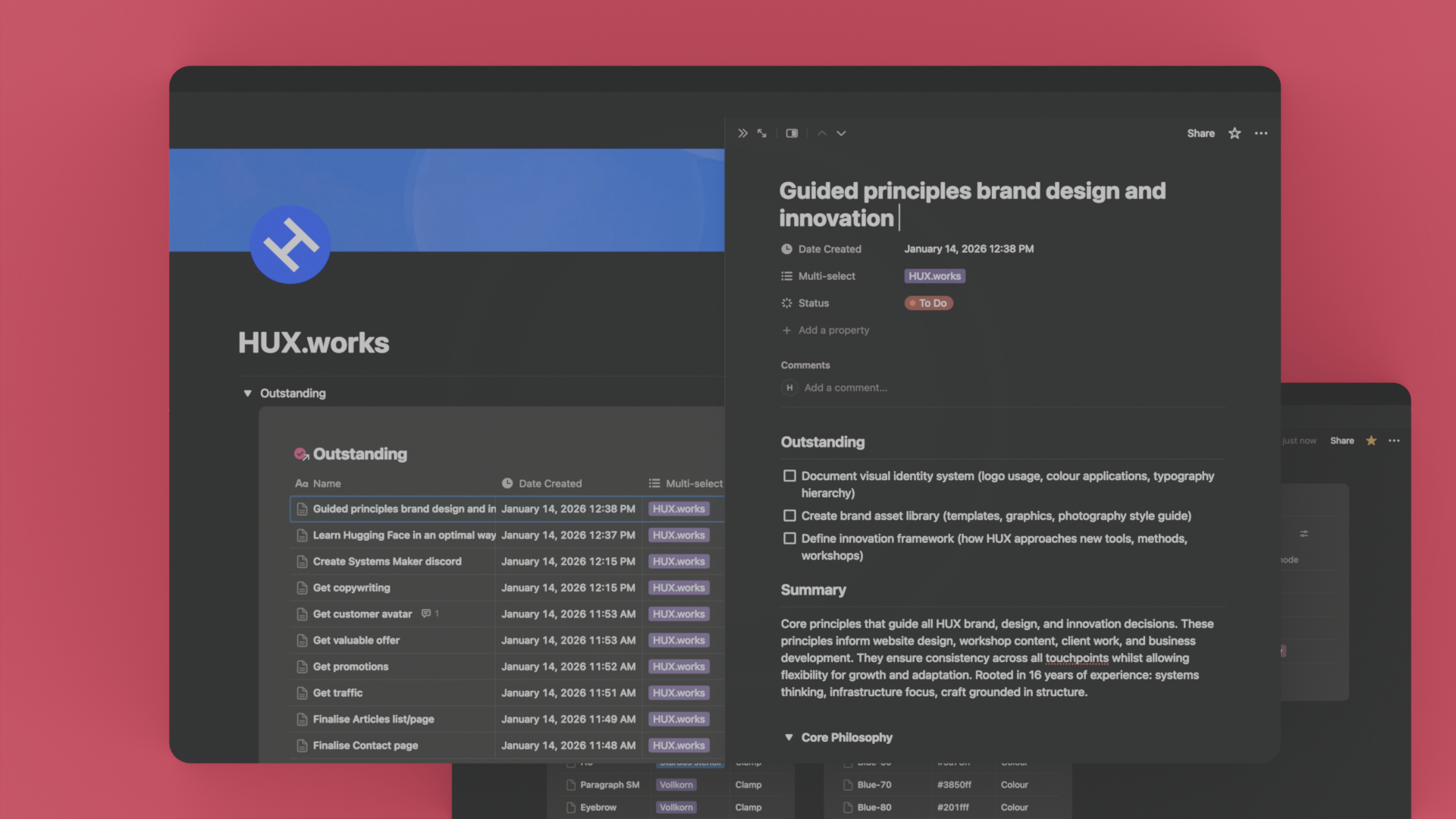
Notion gives me an organised view of the HUX design system variables palette.
Get Organised In Notion Fast
The PARA method (Projects, Areas, Resources, Archive) gives you a framework that works immediately.
Projects — Active work with deadlines. Client sites, workshops, product launches.
Areas — Ongoing responsibilities. Design system, CRM, content calendar.
Resources — Reference material. Design tokens, component library, brand guidelines.
Archive — Completed projects. Moved here when done, searchable when needed.
This structure keeps your workspace clear. Active work stays visible. Reference stays accessible. Archive stays out of the way.

Create a system that works for you not against you.
The PARA Decision Framework
Every time you create a note or save a document, ask these questions in order:
Question 1: Does this have a deadline or specific outcome?
→ YES = Projects
→ NO = Go to Question 2
Projects = Active work with a defined end point.Client website build (deadline: 15 Feb)Workshop preparation (outcome: deliver training)Article to write (deadline: publish date)
Question 2: Is this an ongoing responsibility I manage?
→ YES = Areas
→ NO = Go to Question 3
Areas = Ongoing responsibilities with no end date.Design system maintenanceCRM (client relationships)FinancesHealth/fitness tracking
Question 3: Is this reference material I might need later?→ YES = Resources
→ NO = Go to Question 4
Resources = Reference material, guides, templates, research.Design token specificationsBrand guidelinesCode snippets libraryWorkshop templatesIndustry articles saved for later
Question 4: Is this work complete and no longer active?
→ YES = Archive
→ NO = Delete it (if none of the above apply, you don't need it)
Archive = Completed projects, old client work, deprecated components.Finished client sitesPast workshopsOld design system versions

Outstanding layout design.
Claude now feels like a turbo-charged hyperactive hybrid French-American quadzillionaire
The Structure I Use
(You Can Copy This)
DATABASE 1: PROJECTS
Properties:
• Name (text)
• Status (select: Active, On Hold, Complete)
• Deadline (date)
• Owner (person)
• Category (select: Client Work, Internal, Workshop, Content)
Views:
• Table (all projects, sortable by deadline)
• Board (Kanban by status)
• Calendar (timeline view)
• Inbox (items with no owner or deadline—needs processing)
This goes at the top of your workspace. Check it first thing. See what's active. See what's overdue. Move completed work to Archive.
DATABASE 2: AREAS
Properties:
• Name (text)
• Status (select: Active, On Hold, Review Needed)
• Owner (person)
• Last Reviewed (date)
• Next Review (date)
Views:
• Table (all areas)
• Board (by status)
• Calendar (by next review date)
These don't have deadlines, but they need regular attention. Set review dates. Check quarterly. Make sure nothing rots.
Example areas:
• Design System (ongoing maintenance)
• CRM (client relationships, business development)
• Finances (bookkeeping, invoices, tax prep)
• Content (articles, social posts, newsletter)
DATABASE 3: RESOURCES
Properties:
• Name (text)
• Type (select: Design Token, Component, Template, Guide, Article, Tool)
• Category (select: Design System, Workshop, Business, Personal)
• Last Updated (date)
• Link (URL—if external resource)
Views:
• Table (all resources)
• Gallery (visual cards for components, templates)
• Board (by type)
• Filter views (Design Tokens only, Components only, Templates only)
This is your reference library. Design tokens live here. Component specs live here. Workshop templates live here. Brand guidelines live here. Anything you reference repeatedly.
DATABASE 4: ARCHIVE
Properties:
• Name (text)
• Type (select: Project, Client, Component, Article)
• Date Completed (date)
• Reason Archived (text—optional but useful)
Views:
• Table (all archived items, sortable by completion date)
• Board (by type)
• Gallery (for visual reference)
When a project completes, move it here. When a component gets deprecated, move it here. When a client relationship ends, move it here. Out of sight but searchable when needed.

The open-source CSS framework, Tailwind.
How This Actually Works
Monday morning. You open Notion. Here's what you check:
Projects database (Table view): See what's due this week. See what's overdue. Prioritise.
Inbox view (filtered from Projects): Process anything without an owner or deadline. Assign it. Schedule it. Or delete it.
Areas database (Calendar view): See what needs review this month. Design system review? CRM check-in? Finances update? Schedule the work.
That's it. Three views. Five minutes. You know what matters today.
Throughout the day, you create notes. Client meeting? Decision framework: has a deadline (client site launch) = Projects. Design token update? Reference material = Resources. Weekly CRM review task? Ongoing responsibility = Areas.
No decisions to remake. The framework decides for you.

Customise your Notion templates with highlight colours to bring your brand to life.
Database Relations: Where It Gets Powerful
Databases connect. That's where Notion becomes a system, not a collection of lists.
Example 1: Connect Components to Projects
In your Resources database (where components live), add a relation property: "Used in Projects."Link it to your Projects database.Now you see which projects use which components. And which components each project uses.Why this matters: You know if a component change affects active work. You know which components teams actually use. You make decisions based on data, not guesswork.
Example 2: Connect Projects to Areas
In your Projects database, add a relation: "Related Area."Link it to your Areas database.Client project? Relates to CRM area. Workshop prep? Relates to Content area.Why this matters: When you review an area, you see all related active projects. Context stays connected.
Example 3: Connect Resources to Projects
In your Resources database, add another relation: "Referenced in Projects."Link it to your Projects database.When you reference a template, a guide, a component spec—link it to the project.Why this matters: You see which resources get used. Which ones sit ignored. You know what to keep, what to cut.Relations turn separate databases into a connected system. Information flows between them. Nothing exists in isolation.

It can be as simple of complex as you want it to be. Automate your life.
Inbox Views: Your Safety Net
You will forget to assign status. You will forget to add owners. You will forget deadlines.
Create an Inbox view for every database. Filter: Status = Empty OR Owner = Empty.
Check it daily. Process what's there. Move items to proper views. Keep the inbox empty.
This prevents slow accumulation of unprocessed notes. The kind that makes your workspace unusable six months later.
Inbox views force you to make decisions. Where does this go? Who owns it? When is it due?
If you can't answer those questions, you probably don't need the note. Delete it.

IBM's Carbon Design System is like the bible for documentation.
Notion AI: Use It for Grounded Work
Notion AI works when it has structure to work from. Give it clean data, clear templates, specific prompts. It generates usable output.
Example 1: Weekly Status Report
Select all projects completed this week. Ask Notion AI: "Summarise these projects as a client status report."
Edit the output. Send it. Five minutes instead of thirty.
Example 2: Component Documentation
You have a button component. Specs defined. States documented. Ask Notion AI: "Generate usage guidelines for this component based on the specifications above."
It writes the structure. You edit for accuracy. Another five minutes saved.
Example 3: Meeting Notes Summary
Raw notes from client meeting. Ask Notion AI: "Extract action items and decisions from these notes."
It pulls out what matters. You verify. Add owners and deadlines. Move to Projects database.
Notion AI doesn't replace judgement. It removes tedious parts so you focus on decisions that matter.
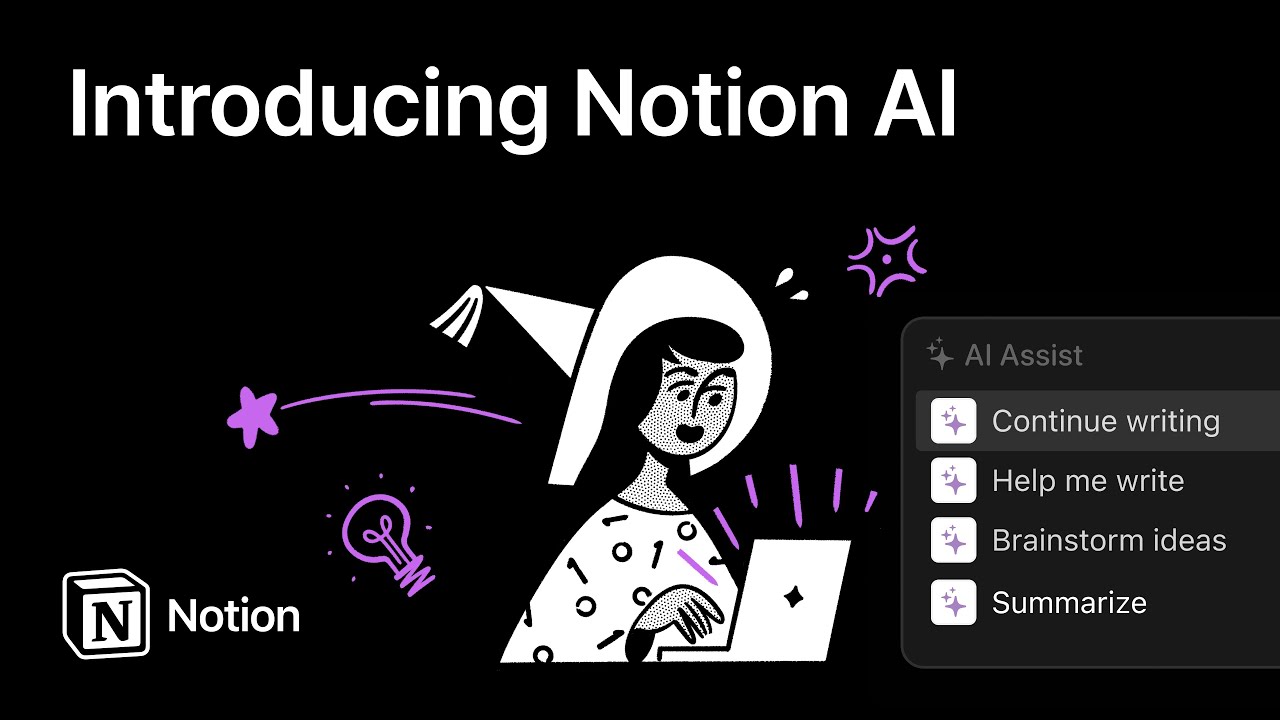
Notion AI keeps you grounded. Automate.
Mobile Workflow: Check In Anywhere
Notion syncs perfectly across devices. Like Figma. Always current.
You're on the train. Client emails a question about component usage. Open Notion mobile. Search "Button Primary." Component page loads. Usage guidelines right there. Reply with answer. Done.
You're at the coffee shop. Idea for workshop improvement. Open Notion. Create note. Run it through decision framework. Has deadline (next workshop) = Projects. Assign to yourself. Set deadline. Close app.
You're between meetings. Check Projects database. See what's overdue. Send quick message to team. Move blocked item to On Hold. Update status.
Mobile workflow removes friction. Information available when you need it. Not just when you're at your desk.
What Actually Changes
When you use PARA in Notion:
Decision fatigue drops. You don't wonder where things go. The framework decides.
Your workspace stays clean. Active work visible. Reference accessible. Archive out of the way.
Nothing gets lost. Everything has a category. If it doesn't fit the framework, you don't need it.
You find things fast. Projects, Areas, Resources, Archive. Four places to check. That's it.
The system scales. Add more projects, more resources, more clients. Structure holds.
Your brain calms down. You know where everything is. You know what needs attention today. You know what can wait.
There's joy in clarity. In systems that hold without constant firefighting. In to know where things are.
This is what that looks like.
Start Simple
Don't build the perfect system. You won't use it.
Start here:
Week 1: Create four databases. Projects, Areas, Resources, Archive. Add one entry to each.
Week 2: Use the decision framework. Every note you create, run it through. Where does it go?
Week 3: Add one relation. Connect Projects to Resources. See what happens.
Week 4: Create Inbox views. Check them daily. Process what's there.
That's it. Four weeks. The structure exists. You use it daily. It works.
Then expand. Add properties. Create views. Build templates. Automate what you can.
But start simple. System that you use beats system that looks impressive.
Whats' Next
Notion works when you use it. Not when you build the perfect workspace and never touch it.
If your design system documentation is scattered, out of date, or only exists in your head—fix it.
Start with PARA. Build the structure. Document one component completely. Use it as the template. Build the rest.
Make it easy for your team to find answers. Make it joyful to use. Make it something that actually helps instead of one more thing to ignore.
If you need help to set this up—structure, relations, workflows—book an intro call. We'll walk through your system and build documentation that actually works.
ARTICLES
FURTHER READING



Hamish Duncan runs HUX, a design systems practice in Bristol, UK. He teaches operator-led no-code workshops for teams who need to scale without chaos. Before design systems: professional snowboarder. Spinal injury 2004. Shift from momentum to structure. 16 years building systems that hold—Hargreaves Lansdown (1.7M users), brand architecture, technical implementation.
Build at the speed of thought.